|
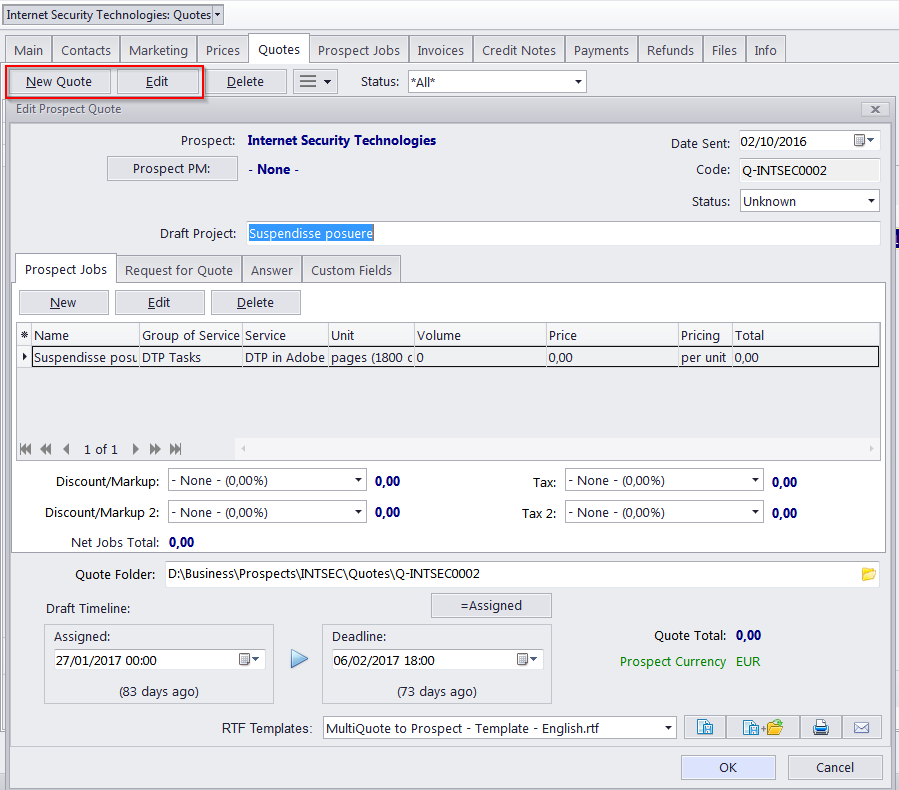
All quote information can be added or changed in Edit Quote window. To open this window for selected quote double-click this quote in the list.
Prospect PM - select one of the prospect's contacts as the project manager for this draft project (on the prospect's side). Please see the Contacts topic for details. Date sent - aside from reference purposes, this date will also be used by the Global Date filter. Please see the Global Date Filter topic for details. Code - the code of the quote is generated automatically. In this code the "Q" character means that this is a quote, the letters afterwards represent the code of the prospect and the number is the value of the quote counter for this prospect. Each prospect has an independent code counter for quotes. Status - the settings in this drop-down list determine the color in which the quote will be shown in the list on the Quotes tab of the Prospect window or in the Prospect Quotes window. Draft Project - the name of the quote. A draft project's name can contain 100 characters maximum. Prospect Jobs - lists the draft prospect jobs in this quote. Use the Customize columns option to configure which data should be displayed. Please see the Draft Prospect Job topic for more details. Quote folder - quote folders are created in the Quotes folder located inside each prospect folder. The quote code is used in naming the quote folder. Draft Timeline - like a regular project, quote has assigned and deadline dates. Request for Quote, Answer - enter a plain text note here. Custom Fields - quotes can also contain custom data (for example custom statuses, dates or notes) added in the form of custom fields. If you have any number of custom fields in quotes, their controls can be found on the Custom Fields tab. For more information on adding custom fields please see the Custom Fields topic.
Saving and printing Prospect Quote You can print quotes or save them in text files by selecting an RTF template and clicking the Save, Save and Open or Print buttons at the bottom of the window. Click Send Mail to open the Mail Sender for the generated quote. Use the RTF Templates drop–down list to select the template.
To edit templates for quotes click User Settings in the Backstage view and select Templates. Templates for Prospect Quotes are located in the C:\Users\Public\Documents\AIT\TO3000, Version 3D\Templates\PROSPECTS\Quotes\ folder.
See also: |